Sorting Screenshots by File Size vs Date on iPhone: why Retina PNG captures eat gigabytes unequally
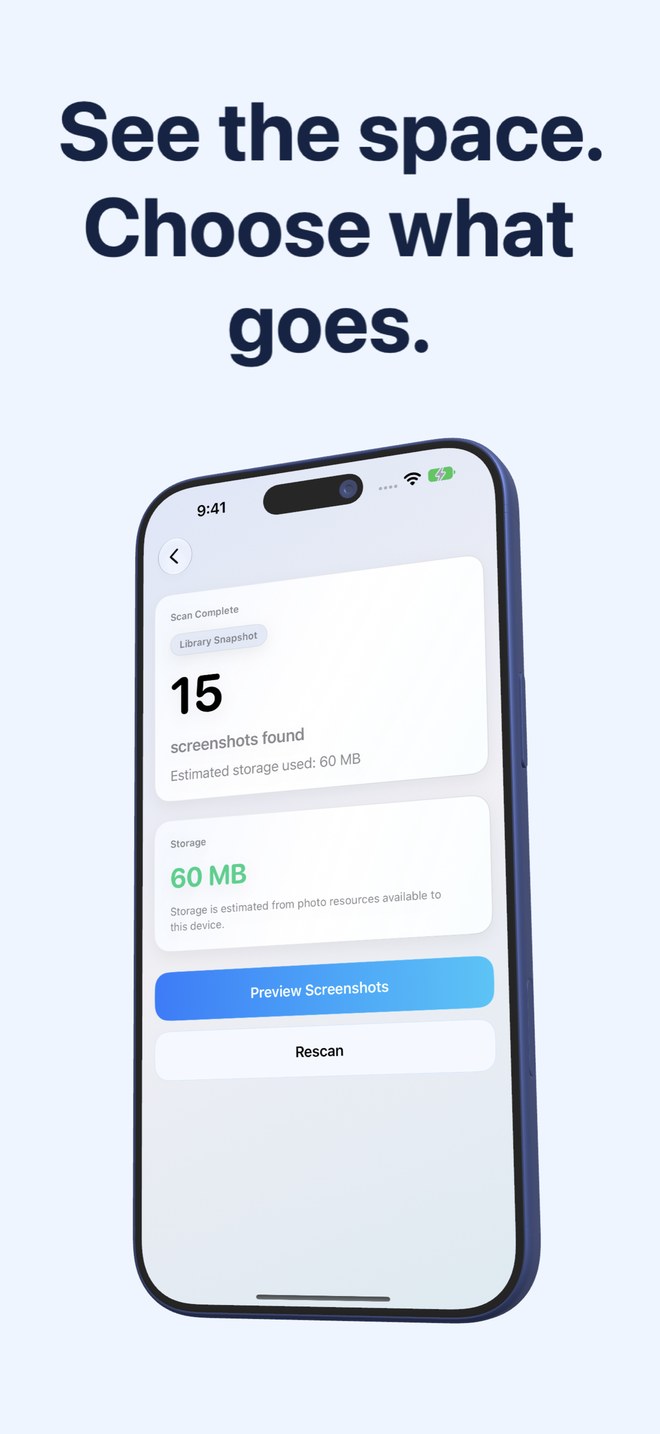
Not all screenshots weigh the same: a plain black-and-white text capture on iPhone might compress to 250 KB, whereas a full-resolution Retina screenshot (`1320×2868` on iPhone or `2064×2752` on iPad) showing a map, game frame, photo feed or HDR wallpaper can weigh 6 MB to 15+ MB as a lossless PNG. Sorting chronologically by date hides those heavyweights; Fastest Screenshot Cleaner ($2.99 US paid download, iOS 26+) reads PhotoKit resource sizes and surfaces heavy files in a dedicated Large stack.
1. Why PNG lossless compression makes detailed screenshots 20x heavier than text captures
iOS saves most default screenshots as PNG files so UI text and thin icons stay razor-sharp without JPEG ringing artifacts. PNG’s lossless DEFLATE compression shrinks flat solid colors dramatically—so a Notes screenshot is tiny—but struggles on noisy gradients, satellite maps, Instagram grids, video frames and game HUDs.
As a result, the heaviest 10% to 15% of screenshots in a typical iPhone or iPad library often account for half or more of total screenshot gigabytes. Deleting 80 oldest text captures sorted by date barely moves your storage bar; clearing 80 heavy map and video-frame screenshots from the Large stack frees hundreds of megabytes immediately.
| What was on screen when captured | PNG compressibility | Typical relative file weight | Priority when freeing space |
|---|---|---|---|
| Plain text note, code or Settings menu | Very high (large flat background blocks) | Small (~0.2–0.8 MB) | Low storage payoff per item |
| Messaging chat thread with small avatars | High to moderate | Small–Medium (~0.5–1.8 MB) | Medium (adds up across 1,000+ chats) |
| Web shopping grid with product thumbnails | Moderate | Medium (~1.5–4 MB) | Medium–High |
| 3D map satellite view, game frame or paused video | Very low (complex per-pixel detail) | Large (~5–12+ MB on iPhone) | Highest storage payoff per deletion |
| 2064×2752 Retina iPad split-screen / PDF / photo canvas | Very low at 5.6+ megapixels | Extra Large (~8–18+ MB on iPad) | Highest storage payoff per deletion |
2. Date-first scrolling vs Fastest Screenshot Cleaner’s Large stack & byte readouts
Apple’s built-in Photos > Screenshots album sorts strictly by capture date without displaying combined megabytes or offering a "Sort by Largest" toggle. Checking file sizes natively requires swiping up on individual screenshots one at a time.
Fastest Screenshot Cleaner reads accessible resource byte sizes via PhotoKit during scan, prints the overall screenshot storage estimate on the result screen, displays per-stack totals on review cards, and isolates heavy captures inside the Large stack while still sorting thumbnails newest-first for familiar scanning.
| Capability | Fastest Screenshot Cleaner | Date-Only Screenshot Views |
|---|---|---|
| Total screenshot storage estimate | Shown immediately on scan result screen | Unavailable — shows screenshot count only |
| Heavy-file isolation | Dedicated Large stack highlights space hogs first | Heavy PNGs buried across years of dates |
| Per-category byte totals | Each stack card & active selection shows estimated weight | No category or selection byte counter |
| Recent date cleanup still available? | Yes — Recent stack isolates the last two weeks + newest-first order | Yes — bottom of chronological grid |
| Honest estimation caveat | Reflects accessible device resources; not a guaranteed fixed instant gain | No storage math shown |
3. Why free space in Settings can lag right after deleting heavy screenshots
Two system behaviors matter after you delete heavy screenshots from the Large stack: first, PhotoKit places removed items in Apple Photos > Recently Deleted for 30 days, where they continue holding storage until you empty Recently Deleted (once you are 100% sure you need none of them). Second, iCloud Photos synchronisation and iOS storage accounting update asynchronously, so Settings > General > iPhone Storage may take a moment to refresh.
| Step | Where to tap | Why this order works |
|---|---|---|
| 1. Clear the Large stack first | Fastest Screenshot Cleaner -> Large card | Removes the heaviest multi-megabyte PNGs in the fewest decisions |
| 2. Clear Exact & Visual Duplicates + Chats | Duplicates & Chats stacks -> Keep Newest / Select All | Sweeps high-count clutter while leaving Invoices & Travel untouched |
| 3. Verify & empty Recently Deleted (optional) | Apple Photos > Utilities > Recently Deleted | Releases bytes immediately instead of waiting 30 days (irreversible!) |
Why does the app call its storage figure an estimate rather than a guaranteed saving?
PhotoKit reports resource sizes accessible on your device. iCloud Photos optimization states, system caches and Recently Deleted retention all influence how much free space iOS reports immediately after deletion.
Can reading the size of iCloud screenshots trigger downloads?
Yes. If a screenshot is stored only in iCloud, asking Photos for its resource size can prompt Photos to download it from Apple.
Should I check Settings > General > iPhone Storage too?
Always. If 80 GB of your phone is used by 4K videos or offline streaming downloads, cleaning 2 GB of screenshots helps tidy Photos but will not solve video bloat on its own.
Does Fastest Screenshot Cleaner sort items newest first inside stacks?
Yes. Thumbnails appear newest first inside a three-column grid so recent context is easy to recognize.