What it does

Features

The full list, each with what it is for.

A scan that asks Photos, not the pixels

A scan that asks Photos, not the pixels

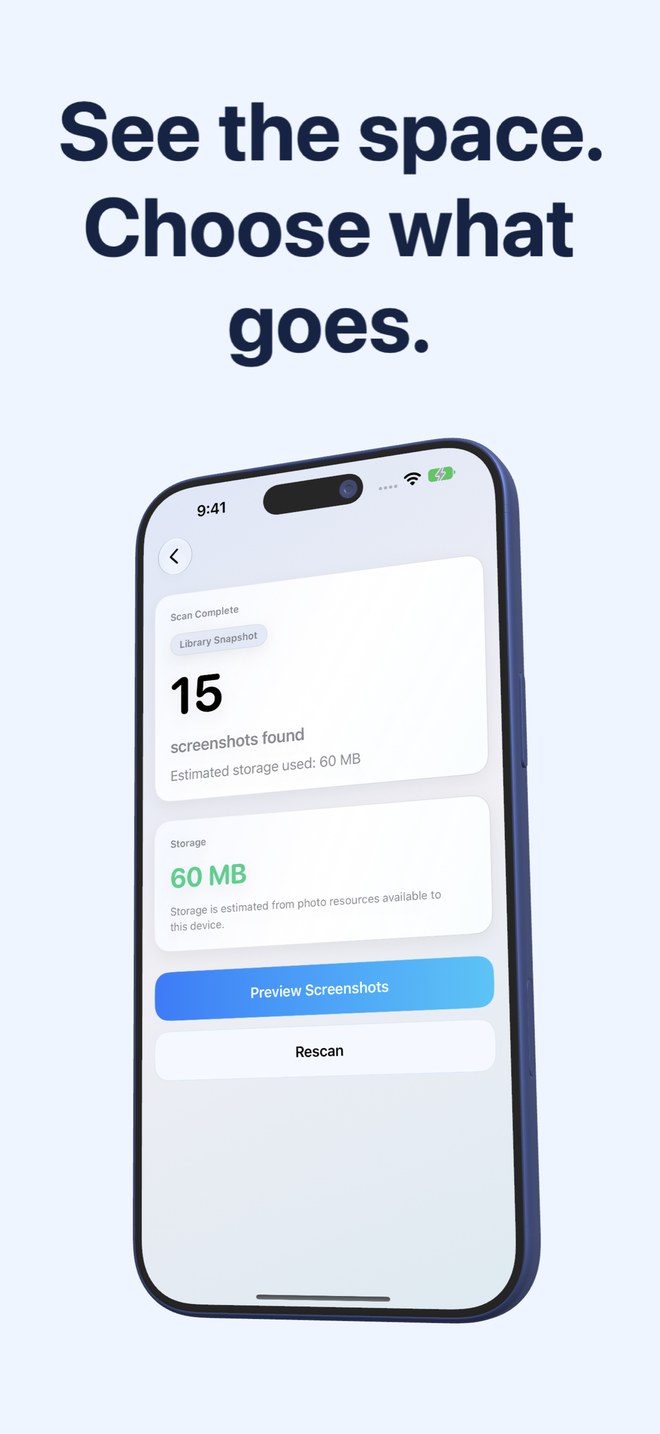
iOS marks every screenshot the moment it is taken. The app asks the Photos library for exactly that mark, so the scan returns your screenshots and nothing else: no photos mistaken for screenshots, no screenshots missed because they look like photos. Works with full or limited Photos access; with limited access it sees only what you shared.

  • PhotoKit screenshot subtype, not image analysis
  • Full or limited Photos access
  • Sorted newest first
The number that makes you act

The number that makes you act

After the scan the app reads the size of every screenshot and adds them up. Two screenshots are a rounding error; four hundred are a gigabyte. The storage card shows the total, and every stack afterwards shows what deleting it would free.

  • Per-screenshot size read from the photo resources
  • Total on the result screen, per-stack totals in review
  • Estimated from what is on the device
Stacks you can judge at a glance

Stacks you can judge at a glance

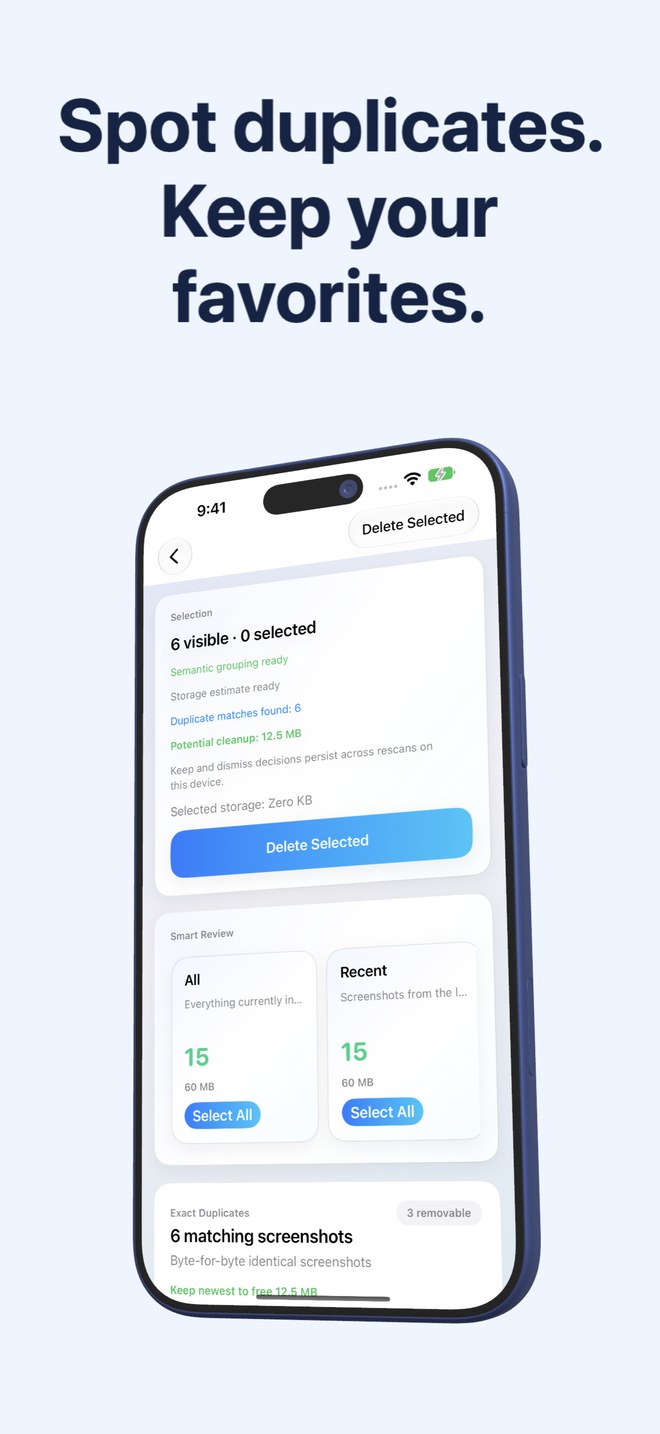
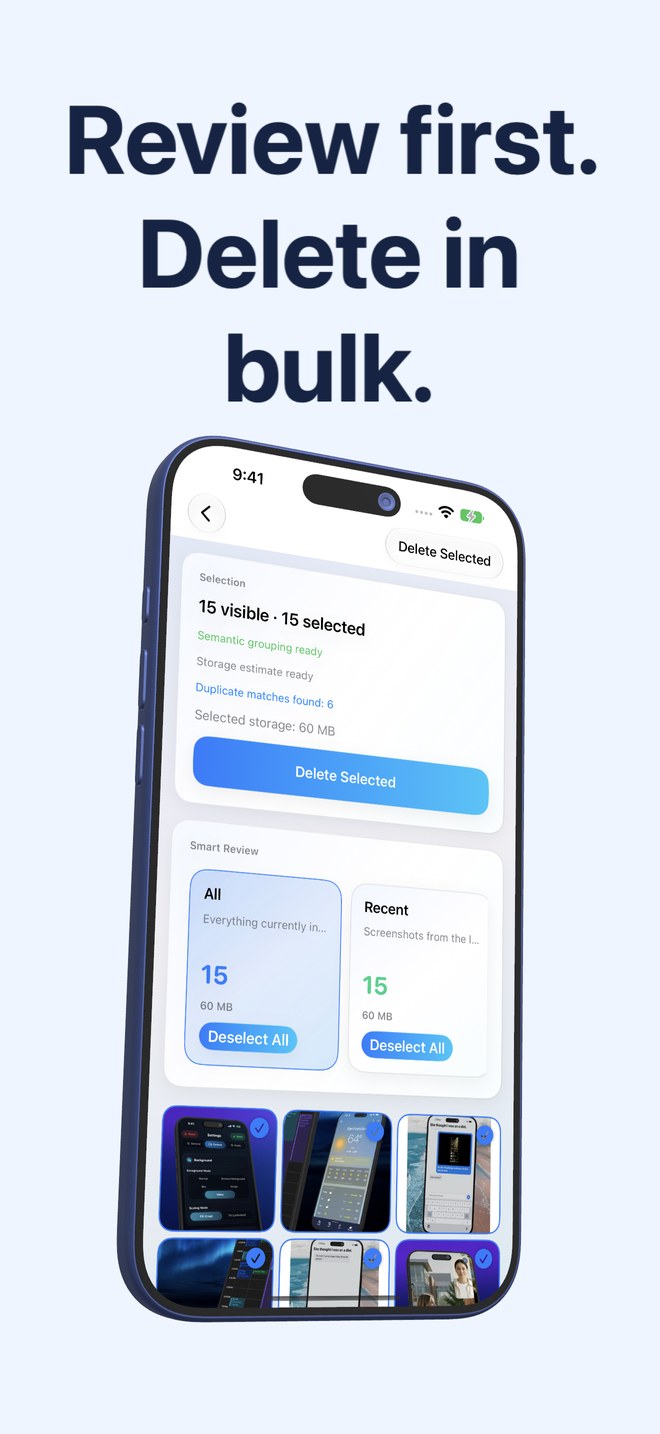
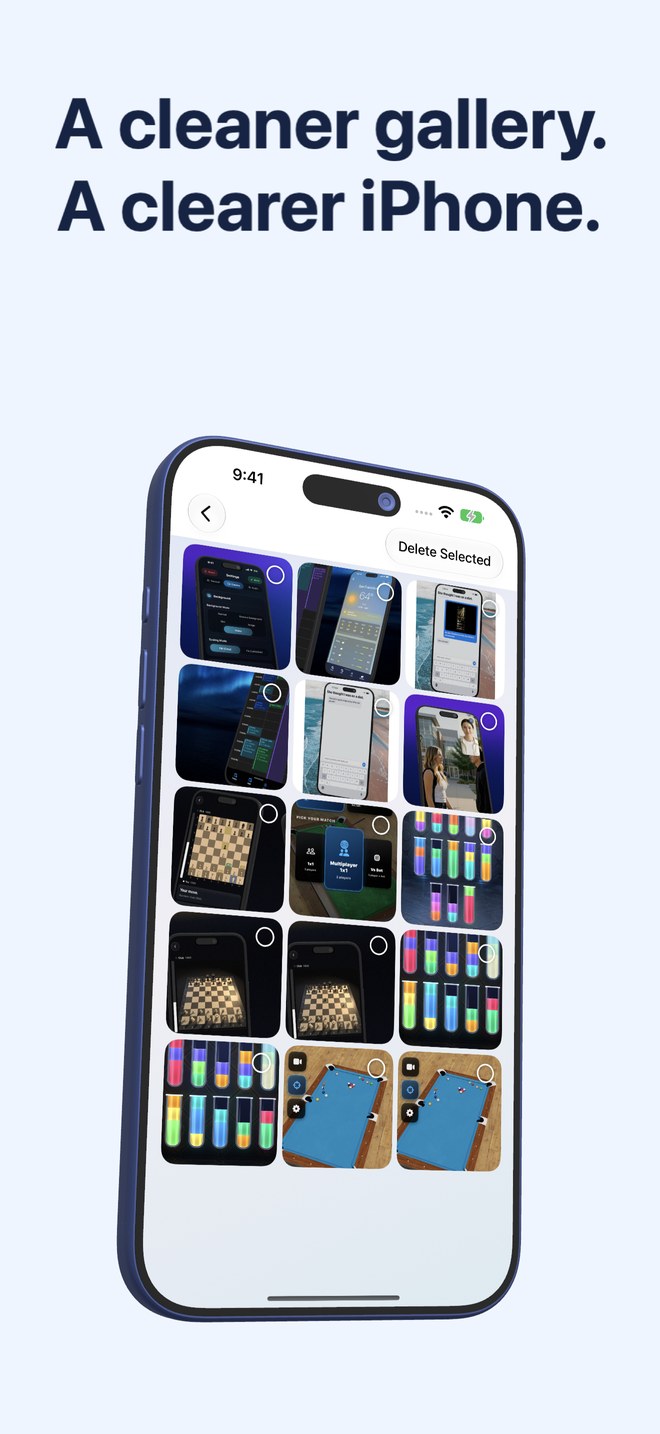
The review screen sorts screenshots into cards: everything, the last two weeks, portrait, landscape, large files worth checking first. Below them, content groups appear as the app reads the text on each screenshot on the device: shopping, invoices, chats, books, code, web and apps, travel. Tap a card to see only that stack; tap Select All to take the whole stack.

  • Recent, Portrait, Landscape, Large
  • Content groups from Vision text recognition plus keyword rules
  • Select or deselect a whole stack in one tap
  • Three-column grid, tap to toggle
Duplicates, exact and re-saved

Duplicates, exact and re-saved

Two kinds of copies get their own stacks. Exact duplicates are byte-for-byte identical files, found by hashing. Visual matches are the same screenshot saved or re-encoded again, found by a compact image fingerprint and the text on it. Each group shows how much keeping only the newest would free, and one button does exactly that.

  • Exact duplicates: SHA-256 of the file
  • Visual matches: image fingerprint plus recognised text
  • Keep Newest marks the rest for deletion
Bulk delete, the safe way

Bulk delete, the safe way

Delete Selected removes every ticked screenshot in one Photos operation. iOS shows its own confirmation, and what you delete goes to Recently Deleted, where it stays for thirty days. Nothing is removed automatically, and the app never deletes anything you did not tick.

  • One operation for the whole selection
  • System confirmation from Photos
  • Recoverable from Recently Deleted for 30 days
A widget that knows before you look

A widget that knows before you look

The home-screen widget shows how many screenshots are waiting and how much they weigh, refreshed after every scan and in the background about once a day. Its Scan button opens the app and starts the scan straight away.

  • Count and size on the home screen
  • Background refresh, never background deletion
  • One tap from widget to running scan