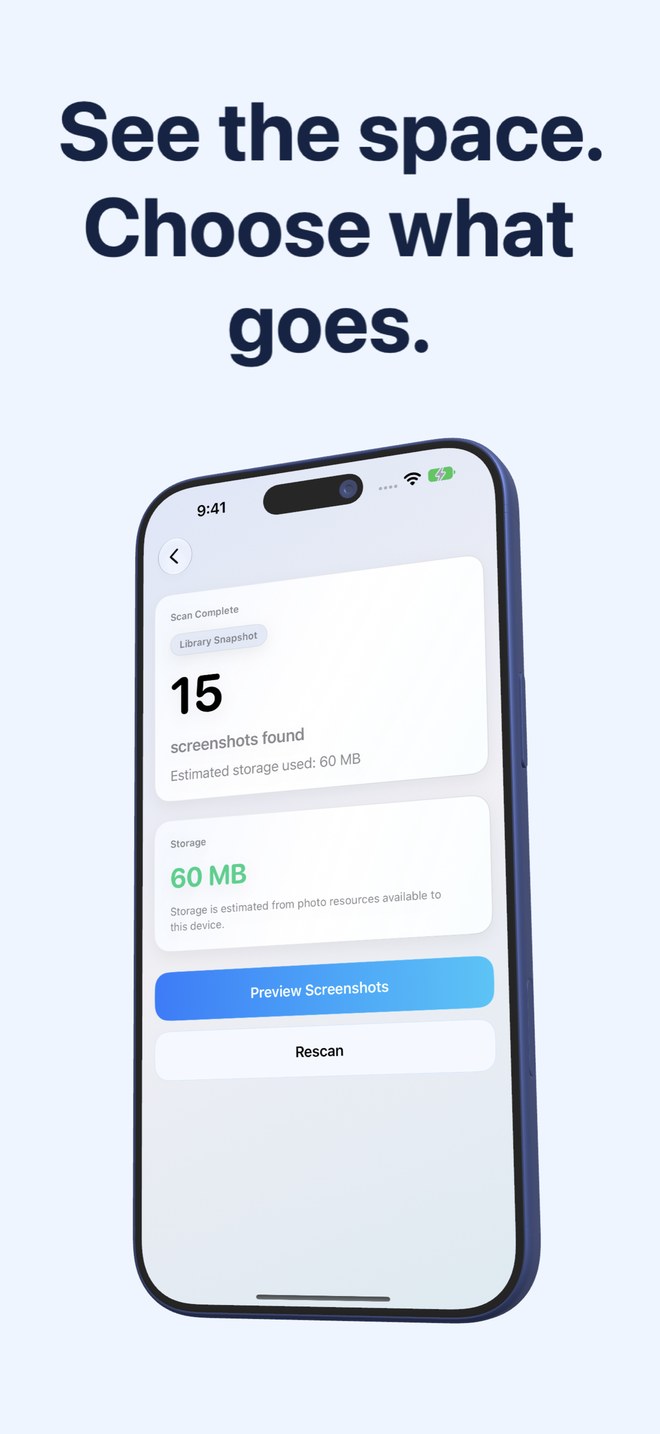
Freeing iPhone Storage Before iOS Updates: deleting screenshots permanently vs offloading apps temporarily
When a major iOS update demands 8 GB to 15 GB of free working space, iOS recommends "Offload Unused Apps"—which frees gigabytes temporarily until you tap those apps next week and re-download every byte right back. Deleting accumulated screenshots with Fastest Screenshot Cleaner ($2.99 US one-time paid download, iOS 26+)—and then emptying Recently Deleted—reclaims space permanently instead of borrowing it for a weekend.
1. Permanent clutter deletion vs temporary app binary eviction
Offloading an app in Settings > General > iPhone Storage removes the executable binary (say 600 MB for an airline or banking app) while keeping its local documents and caches intact. That is a handy zero-data-loss bridge to get an iOS installer unpacked tonight—until Monday morning when you need your banking app on cellular data, wait for it to re-download, or discover a legacy app was delisted from the App Store.
Clearing 2,000 unneeded screenshots, heavy Retina PNGs and duplicate captures attacks permanent dead weight: once removed from Recently Deleted, those bytes never bounce back onto your phone.
| Method | Is reclaimed space permanent? | Hidden catch | Speed to execute |
|---|---|---|---|
| Clean screenshots + empty Recently Deleted (Fastest Screenshot Cleaner) | Yes — permanent local (& iCloud) reduction | Must empty Photos > Recently Deleted to free bytes immediately before update | ~2–5 minutes |
| Offload Unused Apps (iOS Settings) | Temporary — space shrinks again as you re-open apps | Delisted App Store apps can never be re-downloaded once offloaded! | ~1–2 minutes |
| Clear Safari Website Data & bloated app caches | Semi-temporary (rebuilds gradually with browsing) | Logs you out of websites | ~1 minute |
| Delete & trim giant 4K camera videos (iPhone Storage) | Yes — permanent once Recently Deleted is emptied | Irreversible loss of video memories unless backed up externally first | 5–15 minutes |
2. Crucial pre-update step: why you must check Recently Deleted when minutes count
If an iOS installer says "Need 3.2 GB more storage to install" right now, remember how Apple’s PhotoKit works: pressing Delete Selected in Fastest Screenshot Cleaner moves ticked screenshots to Apple Photos > Recently Deleted for 30 days. While they sit in Recently Deleted, iOS still counts their bytes as occupied.
To turn a screenshot cleanup into immediate pre-update installer headroom: (1) review Large, Duplicates, Chats and Web stacks carefully in Fastest Screenshot Cleaner so no needed Invoices or Travel records were ticked, (2) confirm Delete Selected via the Photos sheet, and (3) open Apple Photos > Utilities > Recently Deleted, double-check the thumbnails, and permanently delete those items.
| Minute | Action | Why |
|---|---|---|
| Minute 1 | Check Settings > General > iPhone Storage to see total deficit | Confirms whether Photos/Screenshots are big enough to bridge the gap |
| Minute 2 | Scan in Fastest Screenshot Cleaner -> clear Large & Duplicate stacks | Targets the heaviest PNGs and redundant copies first |
| Minute 3 | Clear Chats, Shopping & Web stacks (skipping Invoices & Travel) | On-device Vision OCR protects important receipts automatically |
| Minute 4 | Inspect Apple Photos > Recently Deleted -> Delete All (if verified safe) | Releases storage immediately so Software Update can proceed |
3. Combining smart offloading (for giant games) with permanent screenshot cleanup
The cleanest pre-update strategy uses each tool where it shines: permanently wipe screenshot junk with Fastest Screenshot Cleaner ($2.99 once) so your everyday library stays light, and temporarily offload one single 12 GB 3D game (never delisted utilities or travel apps you need offline) if the iOS installer still needs temporary unpacking room.
| Item on a full 128 GB iPhone | Right move | Reason |
|---|---|---|
| 2,500 old screenshots of chats, menus, tracking pages & duplicates | Delete via Fastest Screenshot Cleaner | Permanent storage win + cleaner Photos library forever |
| One active 15 GB console-class mobile game on home Wi-Fi | Temporarily Offload App | Frees 15 GB instantly with cloud/local save intact, easy Wi-Fi reinstall |
| Banking, authenticator, airline or older discontinued apps | Keep installed (do NOT offload) | Avoids lockouts or permanent loss of removed App Store binaries |
| Important warranty receipts & medical screenshots | Keep in Invoices stack + external backup | Never sacrifice vital records just to hit an installer byte target |
Wait—if my iPhone already has 0 MB free, should I install Fastest Screenshot Cleaner before or after the crisis?
Install Fastest Screenshot Cleaner while you still have normal working headroom (and add its Home Screen widget so screenshot piles never reach crisis size). If your phone literally has 0 KB free to download any app, offload one large active game first, then clean screenshots permanently.
Why didn’t my free storage go up right after pressing Delete Selected?
Deleted screenshots stay in Apple Photos > Recently Deleted for 30 days by default. Open Recently Deleted inside Apple Photos and permanently remove verified junk if you need the gigabytes immediately for Software Update.
Can offloading apps lose my data?
Offloading preserves local app documents, but if the developer has removed that app from the App Store since you bought it, iOS cannot re-download the app binary—leaving the data stranded on the phone.
Does Fastest Screenshot Cleaner guarantee a fixed gigabyte saving?
No. Savings depend entirely on how many screenshots your library holds, their resolution/format and which items you choose to delete.