How to Find Receipt, Invoice, and Text Screenshots on iPhone Before Bulk Deleting
Tapping Select All inside Apple Photos' Screenshots album is risky because tax invoices, order confirmations, and boarding passes sit right beside disposable memes. Fastest Screenshot Cleaner runs on-device Apple Vision text recognition to group accessible screenshots into topic stacks—including Invoices, Shopping, Travel, and Chats—so you can review and protect records before clearing the rest.
Why chronological screenshot grids hide important records
Apple's built-in Media Types > Screenshots album sorts strictly by capture date. When you have 2,000 screenshots from the past two years, a warranty receipt from March looks almost identical in a thumbnail grid to a settings screen you captured ten minutes later.
Fastest Screenshot Cleaner queries PhotoKit for assets marked with the iOS screenshot subtype and inspects recognized text locally on your iPhone or iPad (iOS 26+). Nothing is uploaded to external servers.
| Screenshot Type | Fastest Screenshot Cleaner Stack | Recommended Action Before Cleanup |
|---|---|---|
| Tax receipts, billing statements, order totals | Invoices & Shopping stacks | Review first; deselect or export records you must keep |
| Boarding passes, hotel confirmations, maps | Travel stack | Keep active trip captures; bulk-delete expired itineraries |
| Messaging threads and social replies | Chats stack | Safe for rapid bulk selection once critical notes are checked |
| Terminal snippets, API keys, UI captures | Code & Web and Apps stacks | Check for temporary recovery codes before deleting |
Step-by-step: isolate receipts and clean disposable stacks
Instead of scrolling from top to bottom, start by auditing the high-value stacks first and then clearing the high-volume clutter stacks.
- Open Fastest Screenshot Cleaner and grant full or selected Photos access.
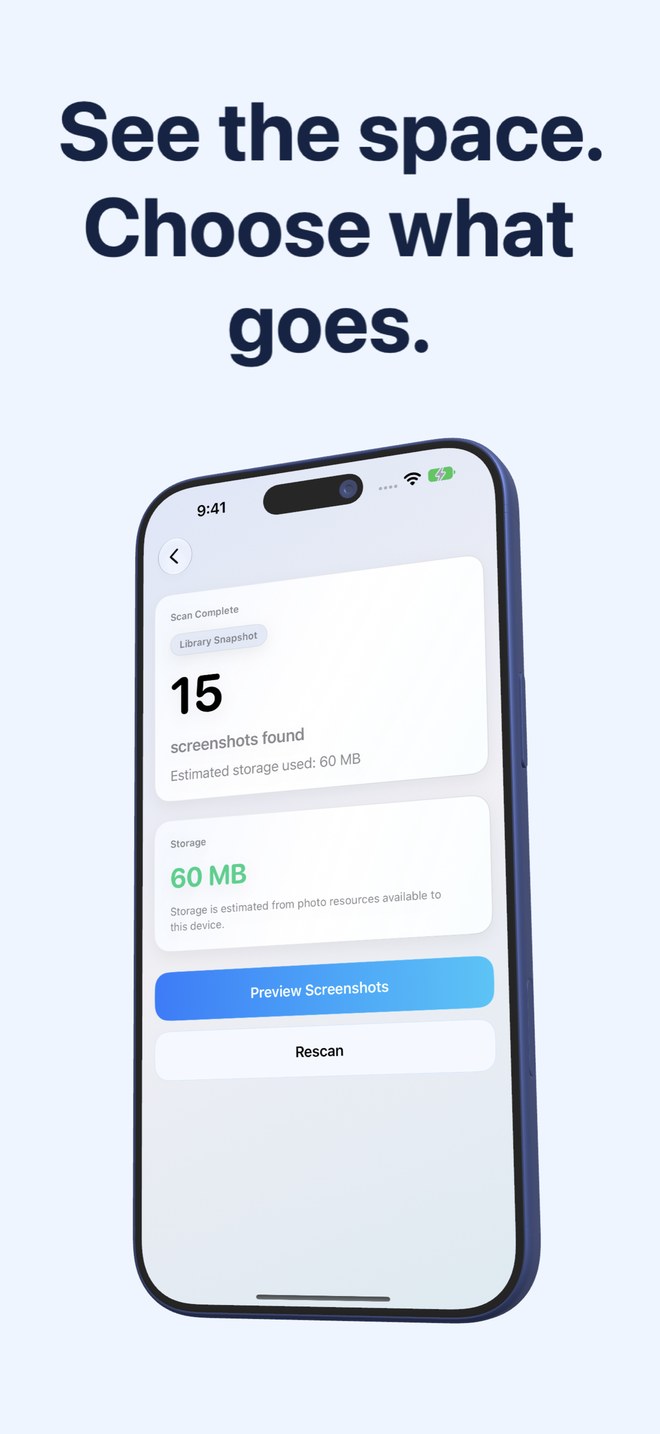
- Run a scan to compute total screenshot weight and generate the on-device Apple Vision topic stacks.
- Open the Invoices, Shopping, and Travel cards first to verify which receipts or confirmations remain in your library.
- Switch to disposable stacks such as Chats or Web and Apps, tap Select All on the 3-column grid, and uncheck any single image you want to keep.
- Tap Delete Selected and confirm inside the system iOS Photos sheet to move the unwanted captures to Recently Deleted.
Keep long-term records outside your screenshot backlog
A screenshot gallery works best as a temporary scratchpad rather than a permanent filing cabinet. When you spot an invoice or warranty confirmation inside the Invoices stack, share or save it to Apple Files or your accounting folder before running your next bulk cleanup.
Does text recognition upload my receipt screenshots to a cloud server?
No. Text recognition uses Apple's on-device Vision framework directly on your iPhone or iPad. Your images and recognized text never leave your device.
Why is a saved receipt image missing from the Invoices stack?
Fastest Screenshot Cleaner scans assets marked as screenshots by iOS PhotoKit. A PDF or image saved from an email attachment without taking an iOS screenshot does not carry the screenshot subtype.
Can I recover a receipt screenshot if I delete it by mistake?
Yes, for up to 30 days. Every deletion uses the system Photos confirmation prompt and moves items to the Recently Deleted album in Apple Photos.